
Tasks & Kanban Board
Manage development tasks and automate work with AI
Tasks & Kanban Board
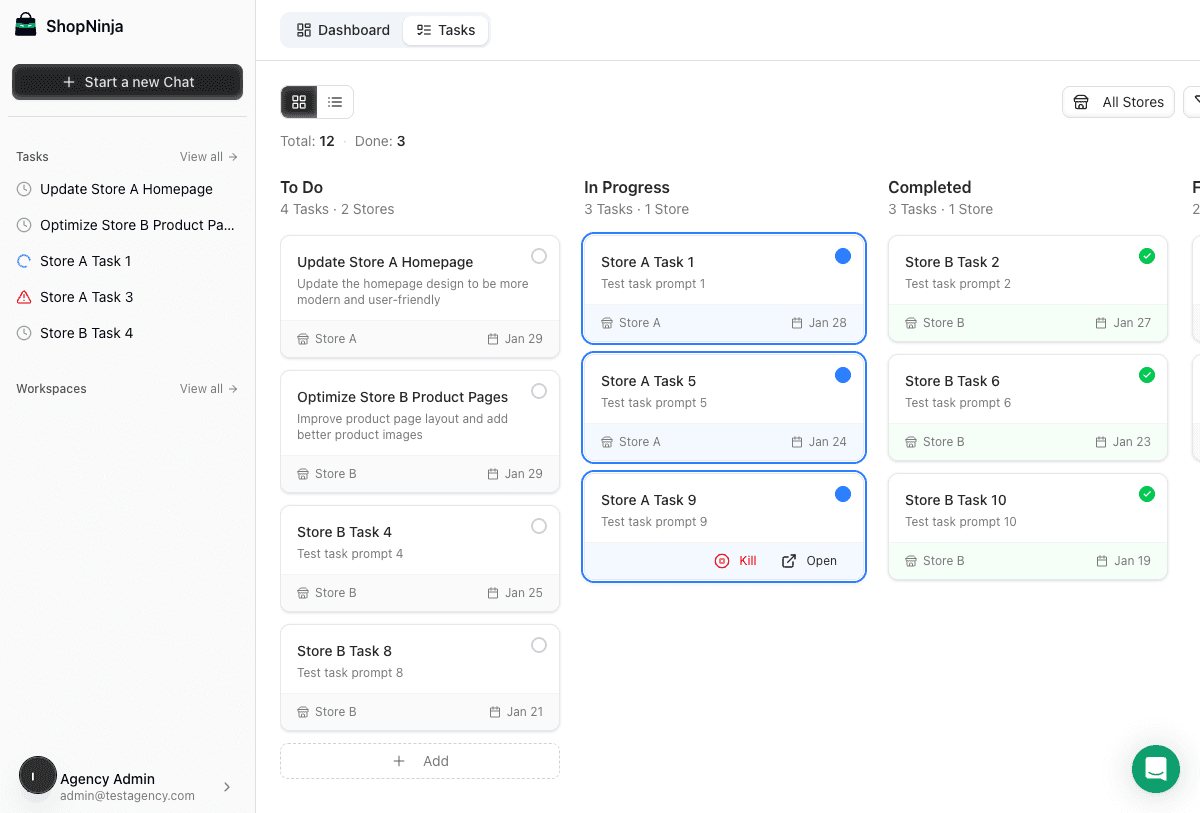
ControlClaw's Kanban board helps you organize development work and delegate tasks to AI for automatic processing.
Overview
The task system lets you:
- Create and organize development tasks
- Track progress across multiple workspaces
- Delegate work to AI for automatic implementation
- Collaborate with team members (agency plans)
Task Board
The Kanban board shows tasks in three columns:
To Do
Tasks waiting to be worked on. Create new tasks here or drag existing tasks back if they need more work.
In Progress
Tasks currently being worked on, either by you or by AI. Only one AI task runs at a time per workspace.
Done
Completed tasks. Review the results and move back to In Progress if changes are needed.
Creating Tasks
Quick Create
Click Add Task in any column to create a new task. Enter:
- Title: Brief description of what needs to be done
- Description: Detailed requirements for the task
Good Task Examples
Clear and Actionable:
Title: Add size chart to product pages

Description: Add a "Size Guide" link below the variant selector on
product pages. Clicking it opens a modal with a size chart table.
The chart data should be editable in the theme customizer.
Specific Bug Fix:
Title: Fix mobile menu overlap

Description: On mobile devices, the navigation menu overlaps with
the announcement bar when scrolling. The menu should appear below
the announcement bar. Test on iPhone and Android viewports.
AI Task Processing
When you move a task to In Progress, ControlClaw's AI automatically starts working on it.
How It Works
- AI reads the task description
- Analyzes your theme files for context
- Plans the implementation
- Makes code changes
- Tests in preview
- Moves task to Done when complete
Monitoring Progress
While AI works on a task, you can:
- Watch the chat for real-time progress
- See files being modified in the file browser
- Check the preview for visual changes
- View terminal output for any commands
Review and Approve
When AI completes a task:
- Review changes in the diff view
- Test functionality in the preview
- Accept changes or request modifications
- Publish when ready
Task Workflow Tips
Break Down Large Tasks
Instead of one big task like "Redesign homepage," create smaller tasks:
- "Update hero section with new layout"
- "Add featured collection carousel"
- "Redesign footer with more links"
This gives you checkpoints to review and makes it easier to catch issues.
Use Labels and Priority
Organize tasks with:
- Priority: High, Medium, Low
- Type: Bug, Feature, Enhancement
- Component: Header, Footer, Product, etc.
Batch Similar Work
Group related tasks together. The AI maintains context between tasks, so related work often goes faster.
Team Collaboration
Agency plans support team task management:
Assign Tasks
Assign tasks to team members or to AI. Team members receive notifications when assigned.
Comments
Add comments to tasks for discussion. Use @mentions to notify specific team members.
Activity Log
Track all changes to a task: status updates, comments, file changes, and who made them.
Task Automation
Scheduled Tasks
Set tasks to start automatically at specific times. Useful for:
- Running daily theme checks
- Scheduling non-urgent work for off-hours
- Coordinating releases across time zones
Task Templates
Create templates for common tasks. Useful for:
- Regular maintenance tasks
- Onboarding new stores
- Standardized feature implementations
Best Practices
Write Clear Descriptions
The AI works directly from your task description. Include:
- What needs to be done
- Where changes should be made
- Any constraints or requirements
- How to verify it's working
One Thing Per Task
Keep tasks focused on a single outcome. This makes them easier to review and roll back if needed.
Review Before Done
Don't just trust the "Done" status. Always:
- Check the actual code changes
- Test in preview
- Verify on different devices
Keep the Board Clean
Archive completed tasks regularly. A clean board helps you focus on current work.
Next Steps
- Learn AI prompting for better task descriptions
- Explore the IDE for hands-on development
- Understand publishing to ship your changes