
AI Prompting Best Practices
Learn how to write effective prompts for better AI results
AI Prompting Best Practices
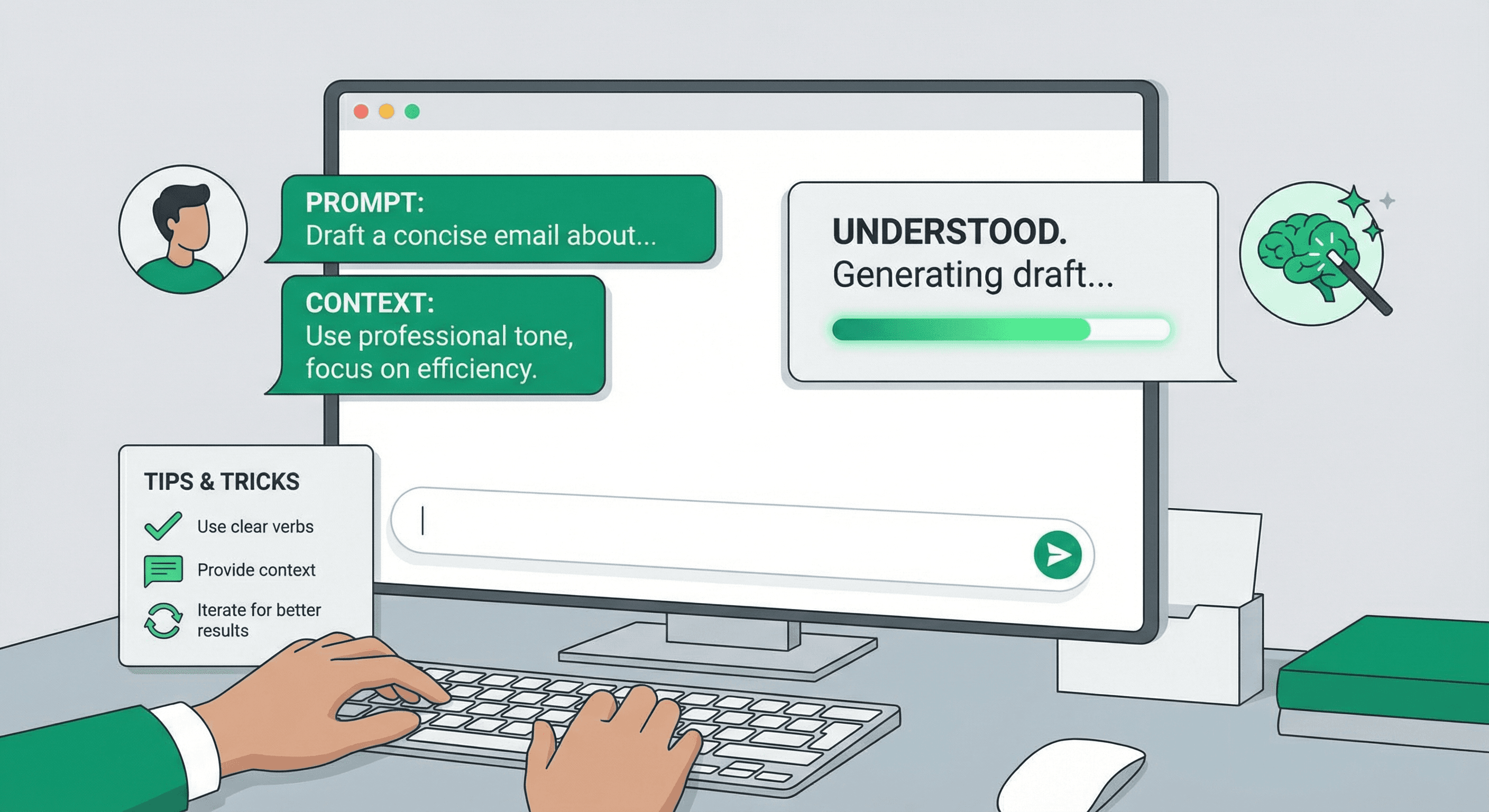
Get better results from ControlClaw's AI by writing clear, effective prompts. This guide covers techniques and examples to help you communicate your intent.
Principles of Good Prompts
Be Specific
Vague prompts lead to vague results. Include details about what you want, where it should go, and how it should behave.
Bad Prompt
"Make the header better"
Good Prompt
"Add a sticky header that stays visible when scrolling. Include the logo on the left, navigation links centered, and a cart icon on the right."
Provide Context
Tell the AI about your theme, brand, or any constraints. The more context, the better the results.
Good Prompt
"We're a minimalist furniture brand. Add a product carousel to the homepage that shows 4 products at a time on desktop and 1 on mobile. Use smooth scroll animations that match our clean aesthetic."
Break Down Complex Requests
For large changes, split your request into steps. This helps the AI focus and gives you checkpoints to review.
Instead of: "Redesign the entire product page"
Try:
- "Update the product image gallery to support zoom on hover"
- "Move the variant selector above the add to cart button"
- "Add a size guide modal that opens when clicking 'Size Guide'"
Prompt Patterns
Feature Implementation
When asking for new features, describe the functionality, location, and any specific requirements.
Add a newsletter signup form to the footer with:
- Email input field with placeholder "Enter your email"
- Submit button with text "Subscribe"
- Success message that shows after submission
- Store the email using the existing newsletter form action
Bug Fixes
Describe the problem, expected behavior, and any error messages you see.
The mobile menu isn't closing after clicking a link.

Expected: Menu should close when any link is clicked
Actual: Menu stays open, requiring manual close

I see this error in the console: [paste error]
Style Changes
For CSS changes, be specific about colors, sizes, spacing, and responsive behavior.
Update the product card styling:
- Increase image size to 300x400px
- Add 16px padding around the content
- Change the price color to #2563eb
- Add a subtle shadow on hover
- Make sure it looks good on mobile
Code Questions
When asking questions, include the file or code you're asking about.
In sections/product-template.liquid, what does this line do?

{% assign first_variant = product.variants | first %}

And when would I use this vs product.selected_or_first_available_variant?
Tips for Better Results
Start Simple, Then Iterate
Begin with a basic implementation, then refine with follow-up prompts.
- "Add a product carousel to the homepage"
- "Make it show 4 items on desktop, 2 on tablet, 1 on mobile"
- "Add navigation arrows and dots"
- "Slow down the auto-scroll to 5 seconds"
Reference Existing Patterns
Point the AI to existing code that does something similar.
Add a quick view modal for products on the collection page.
Use the same modal pattern as the cart drawer in snippets/cart-drawer.liquid.
Specify What NOT to Do
If there are approaches you want to avoid, say so explicitly.
Add product filtering to the collection page.
Don't use any external JavaScript libraries - use vanilla JS only.
Keep the existing URL structure for filtered results.
Review Before Accepting
Always review AI changes in the diff view before accepting. Look for:
- Unintended changes to other files
- Hard-coded values that should be dynamic
- Missing responsive styles
- Accessibility issues
Common Prompt Templates
Adding a Section
Create a new section called [name] that:
- [Main functionality]
- [Customization options in schema]
- [Responsive behavior]
- [Any specific styling]
Modifying Existing Code
In [file path], modify [specific element/function] to:
- [Change 1]
- [Change 2]
Keep [what should stay the same].
Debugging
[File path] has an issue where [describe problem].
[Paste relevant code or error]
Expected behavior: [what should happen]
Actual behavior: [what happens instead]
Next Steps
- Practice with simple prompts first
- Review the IDE guide to understand available tools
- Use the Kanban board to queue AI tasks