
The IDE
Complete guide to ControlClaw's integrated development environment
The IDE
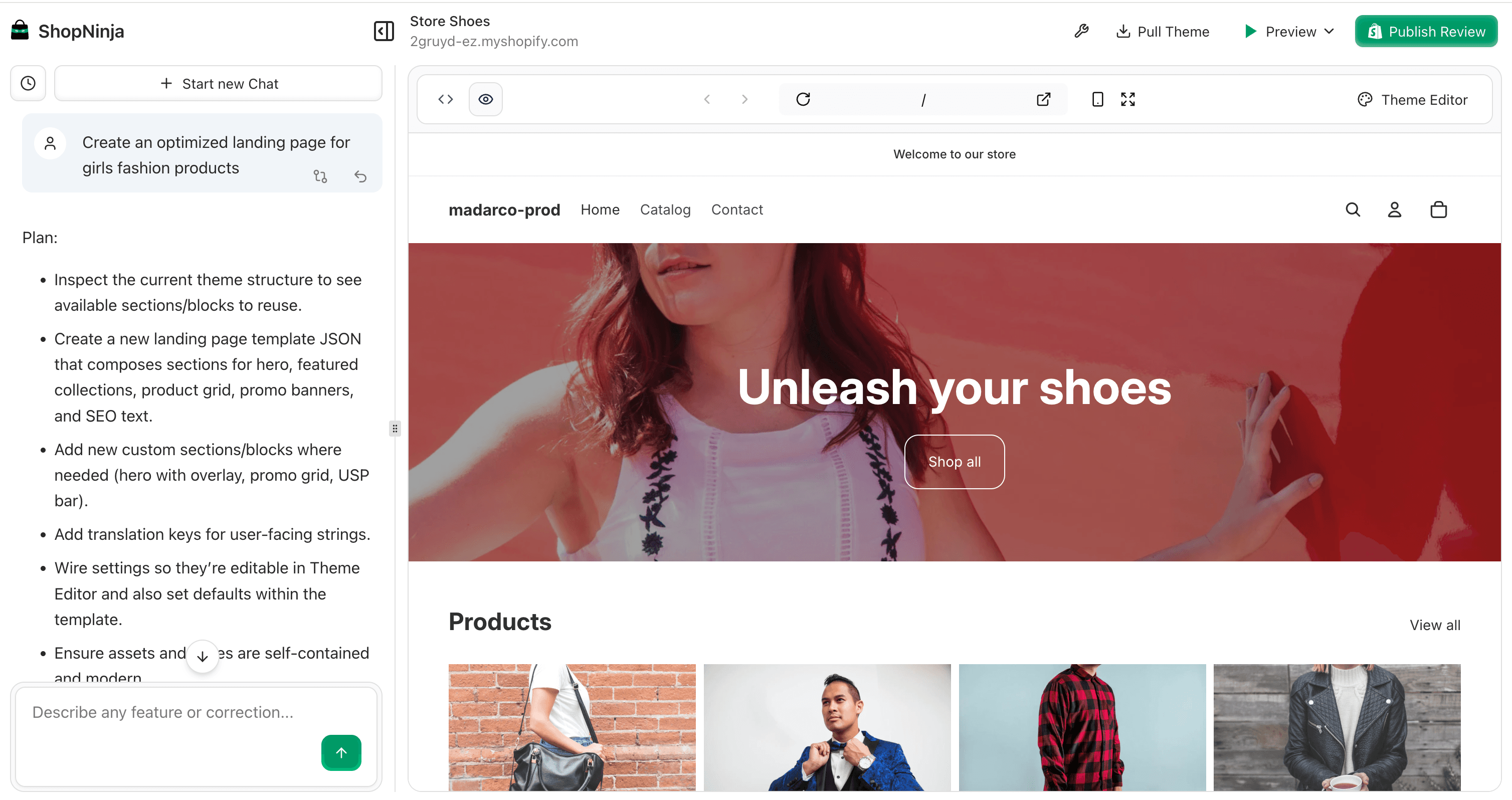
ControlClaw's IDE is a full-featured development environment built for Shopify theme development. It combines a code editor, file browser, terminal, AI chat, and live preview into one unified experience.
Interface Overview
The IDE consists of several panels you can resize and rearrange:
Left Sidebar
- AI Chat: Interact with the AI assistant
- File Browser: Navigate your theme files
Center Panel
- Code Editor: Write and edit code
- Diff View: Compare changes before publishing
Right Panel
- Live Preview: See your store with current changes
Bottom Panel
- Terminal: Run commands and see output
Code Editor
The editor provides a modern coding experience with features tailored for Shopify development.
Syntax Highlighting
Full syntax support for:
- Liquid templates (.liquid)
- JSON configuration (.json)
- CSS and SCSS
- JavaScript
- HTML
Editor Features
- Auto-completion: Suggestions for Liquid tags, filters, and objects
- Error highlighting: Catch syntax errors as you type
- Multiple cursors: Edit multiple lines simultaneously (Cmd/Ctrl + D)
- Find and replace: Search across files (Cmd/Ctrl + Shift + F)
- Code folding: Collapse sections for easier navigation
Keyboard Shortcuts
| Action | Mac | Windows |
|---|---|---|
| Save | Cmd + S | Ctrl + S |
| Find | Cmd + F | Ctrl + F |
| Find in files | Cmd + Shift + F | Ctrl + Shift + F |
| Go to file | Cmd + P | Ctrl + P |
| Toggle comment | Cmd + / | Ctrl + / |
| Multiple cursors | Cmd + D | Ctrl + D |
File Browser
The file browser shows your theme's directory structure.
Navigation
- Click folders to expand/collapse
- Click files to open in editor
- Right-click for context menu options
File Operations
- New File: Create a new file in the selected directory
- New Folder: Create a new folder
- Rename: Change file or folder name
- Delete: Remove file or folder
- Duplicate: Copy file with new name
Search Files
Use the search box to filter files by name. Type to filter, press Enter to open the first match.
AI Chat
The integrated AI assistant can help with any aspect of theme development.
Capabilities
- Read files: AI can access and understand your theme code
- Write code: Implement features, fix bugs, add styles
- Run commands: Execute terminal commands when needed
- Answer questions: Explain Liquid syntax, Shopify APIs, CSS tricks
Using the Chat
Type your message and press Enter. The AI will:
- Analyze your request
- Plan the approach
- Make changes or provide information
- Show what was done
Referencing Files
Mention specific files to focus the AI's attention:
Look at sections/header.liquid and add a search icon to the navigationReviewing Changes
When AI makes changes, they appear in the editor. You can:
- Accept all changes
- Revert specific changes
- Ask for modifications
Live Preview
The preview panel shows your store with current changes applied.
Preview Controls
- Refresh: Reload the preview
- Device toggle: Switch between desktop and mobile views
- URL bar: Navigate to different pages
- Open in new tab: View in full browser window
Preview Updates
The preview updates automatically when you:
- Save a file
- Accept AI changes
- Run certain terminal commands
Terminal
The integrated terminal provides command-line access to your development environment.
Available Commands
The terminal includes Shopify CLI and common development tools:
# Theme commands
shopify theme check     # Lint your theme
shopify theme info      # Show theme information

# File operations
ls, cd, cat, etc.       # Standard Unix commands

# Git (if connected)
git status, git diff    # Version control
Terminal Tips
- Use Tab for auto-completion
- Ctrl + C to cancel running commands
- Ctrl + L to clear the terminal
- Click the expand icon for full-screen terminal
Diff View
Before publishing, review all changes in the diff view.
Accessing Diff View
Click the diff icon in the toolbar or use Cmd/Ctrl + D.
Understanding the Diff
- Green lines: Added code
- Red lines: Removed code
- Yellow lines: Modified code
- File tabs: Navigate between changed files
Diff Options
- Unified view: Changes shown inline
- Split view: Original and modified side by side
- Ignore whitespace: Focus on code changes only
Toolbar
The top toolbar provides quick access to common actions:
| Button | Action |
|---|---|
| Pull Theme | Fetch latest theme from Shopify |
| Preview | Toggle preview panel |
| Publish Review | Start the publish workflow |
| Settings | Workspace and editor settings |
Tips and Tricks
Workspace Layout
Drag panel edges to resize. Double-click to collapse/expand. Your layout preferences are saved.
Working with Large Themes
- Use file search (Cmd/Ctrl + P) to jump to files quickly
- Collapse folders you're not working in
- Use the AI to find relevant files: "Which file handles the cart drawer?"
Keyboard-Driven Workflow
Learn the shortcuts for faster development:
- Cmd/Ctrl + S to save frequently
- Cmd/Ctrl + P to open files by name
- Cmd/Ctrl + Shift + F to search across files
Getting Help
Stuck on something? Ask the AI:
- "How do I add a metafield to products?"
- "What's wrong with this Liquid code?"
- "Show me examples of product carousels"
Next Steps
- Learn AI prompting for better assistance
- Set up task automation for larger projects
- Understand the publishing workflow