
How to Use
Step-by-step guide to getting started with ControlClaw
How to Use ControlClaw

This guide walks you through setting up ControlClaw and creating your first project.
Prerequisites
Before you begin, make sure you have:
- A Shopify store with theme access
- A ControlClaw account (sign up at controlclaw.app)
- Basic familiarity with Shopify themes (helpful but not required)
Quick Start
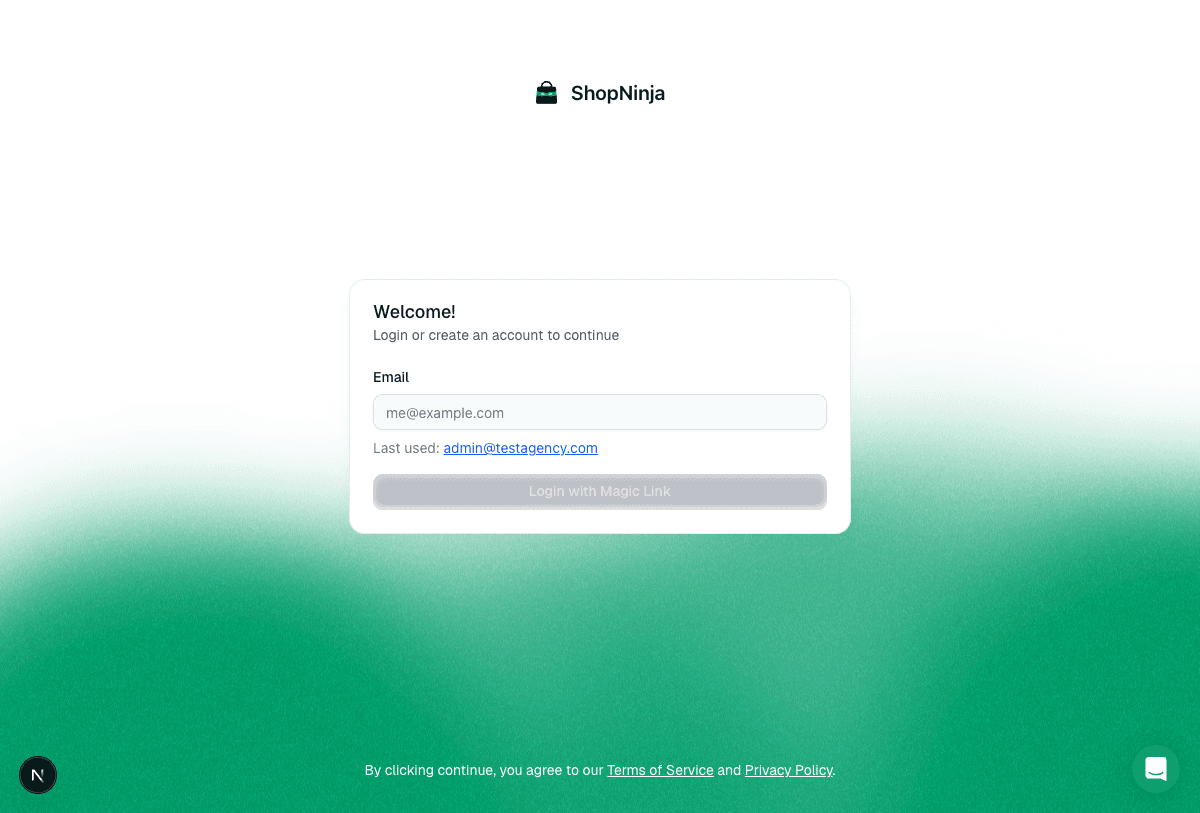
Create Your Account
Sign up at ControlClaw using your email. You'll receive a magic link to complete registration.
Connect Your Shopify Store
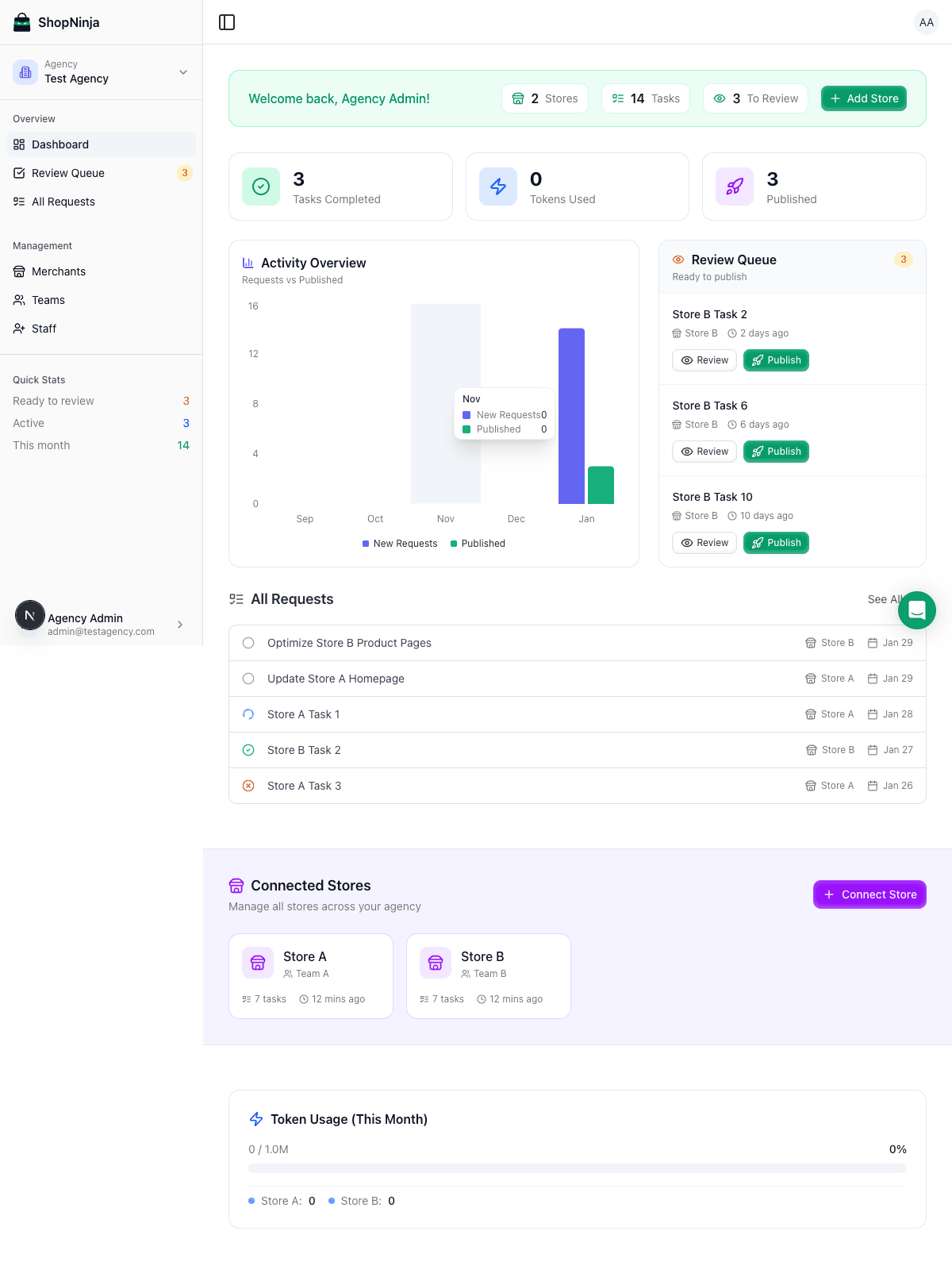
From the dashboard, click Add Store. You'll be redirected to Shopify to authorize ControlClaw. Select the store you want to connect and approve the permissions.
ControlClaw only requests permissions needed for theme development. Your store data remains private.
Create a Workspace
Once your store is connected:
- Click New Workspace from the dashboard
- Select the theme you want to work on
- Give your workspace a name
- Click Create
Your development environment will spin up in a few seconds.
Start Developing
Your workspace is now ready. You'll see:
- File browser on the left - Browse and manage theme files
- Code editor in the center - Edit files with syntax highlighting
- Preview panel on the right - See live changes
- AI chat - Ask for help or request changes
- Terminal at the bottom - Run commands
Basic Workflow
Making Changes
- Open a file from the file browser
- Edit the code in the editor
- Save your changes (Cmd/Ctrl + S)
- Preview updates automatically
Using AI Assistance
The AI chat can help you with:
- Code questions: "How do I add a product carousel?"
- Bug fixes: "Why isn't this CSS working?"
- Full implementations: "Add a newsletter signup form to the footer"
Just type your question or request in the chat. The AI can read your files, write code, and run terminal commands.
Running Commands
The integrated terminal supports Shopify CLI and other tools:
# Check theme status
shopify theme info

# Run theme checks
shopify theme check
Next Steps
- Learn about the IDE features in detail
- Set up task automation with the Kanban board
- Master AI prompting for better results