The firewall
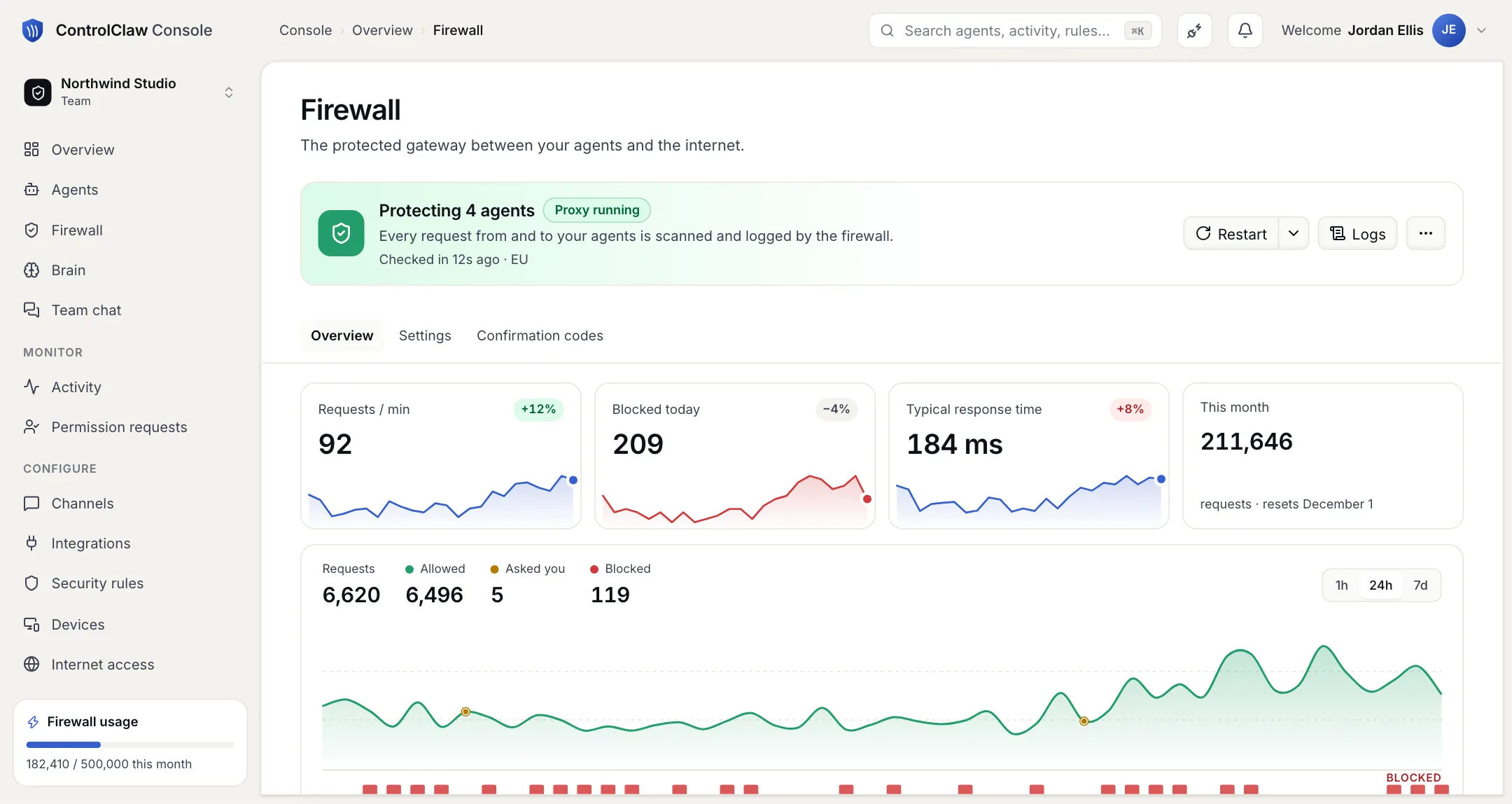
Every agent's traffic goes through your organization's firewall. It applies your rules, holds risky actions for your approval and keeps the logs.
Your organization has one firewall: a separate machine that sits between your agents and the internet. An agent cannot reach anything except through it. Turning off rules inside an agent's machine only cuts it off; it does not open a way around the firewall.
The firewall's disk is encrypted, like your agents'. It holds your channel tokens, your AI model keys and the keys of the apps you connect, so your agents never have them.
Your security rules
Owners and admins manage the rules on the Security rules page. There are five kinds:
| Rules | What they cover |
|---|---|
| Messages | What your agents may send and receive. You write a rule as a sentence, such as "Don't share anyone's salary", and the firewall's AI checks every message against it. Words and detectors (passwords and keys, bank account and card numbers) can be added. |
| Who can email your agents, and whom they can email. Email from someone who is not listed, or whose sender checks fail, does not reach the agent. | |
| Websites | Which websites your agents can reach: allow, ask you, or block. |
| Integrations | What your agents may do in the apps you connect (GitHub, Notion, Slack and others) and in MCP servers: allow, ask a person, or block. |
| Auto approve | Answers your agents' requests for permission (payments, deletes, shell commands) without asking you: allow, ask you, or block. |
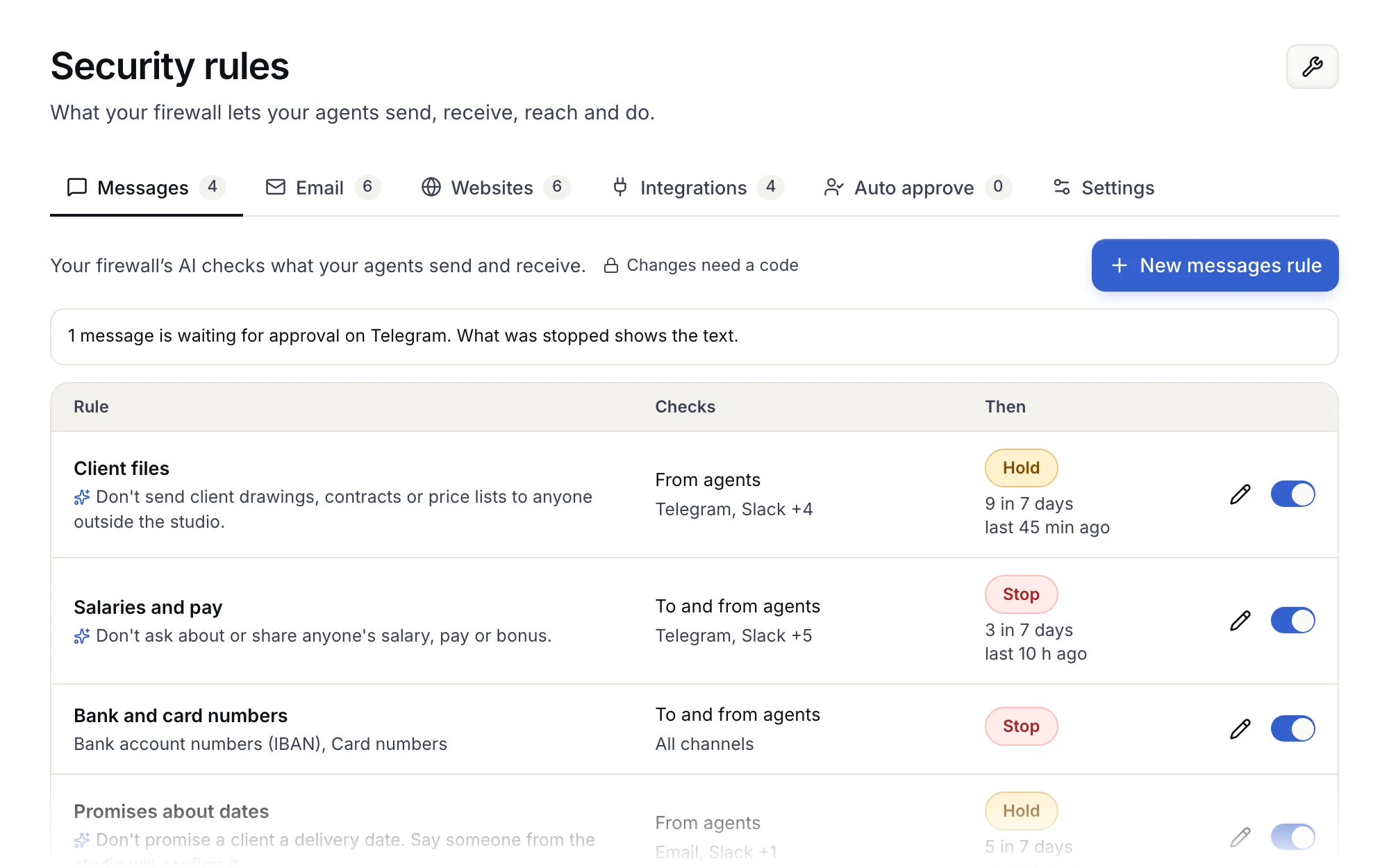
Message rules are checked on Telegram, Slack, email, website requests, webhooks, team chat, the voice in meetings and calls, and actions in connected apps. WhatsApp cannot be checked, because its messages are end-to-end encrypted on the agent.
One message rule is always on and cannot be changed: messages from an agent that look like they contain a password, an API key, a private key or a token are stopped.
Message rules are for mistakes and policy, such as someone asking an agent to send out a customer list. They are not a defence against someone who is trying to get around them.
Holding actions for approval
A rule can do one of three things when it matches:
- Stop. The message or request does not go, and the agent is told why.
- Hold for approval. The firewall sends the people who get your confirmation codes a message with the rule, the reason and the start of the message, and two buttons: Send and Don't send. With no answer in 24 hours, the message is dropped.
- Only record. Nothing is stopped. Use this to see what a rule would catch before you turn it into a stop.
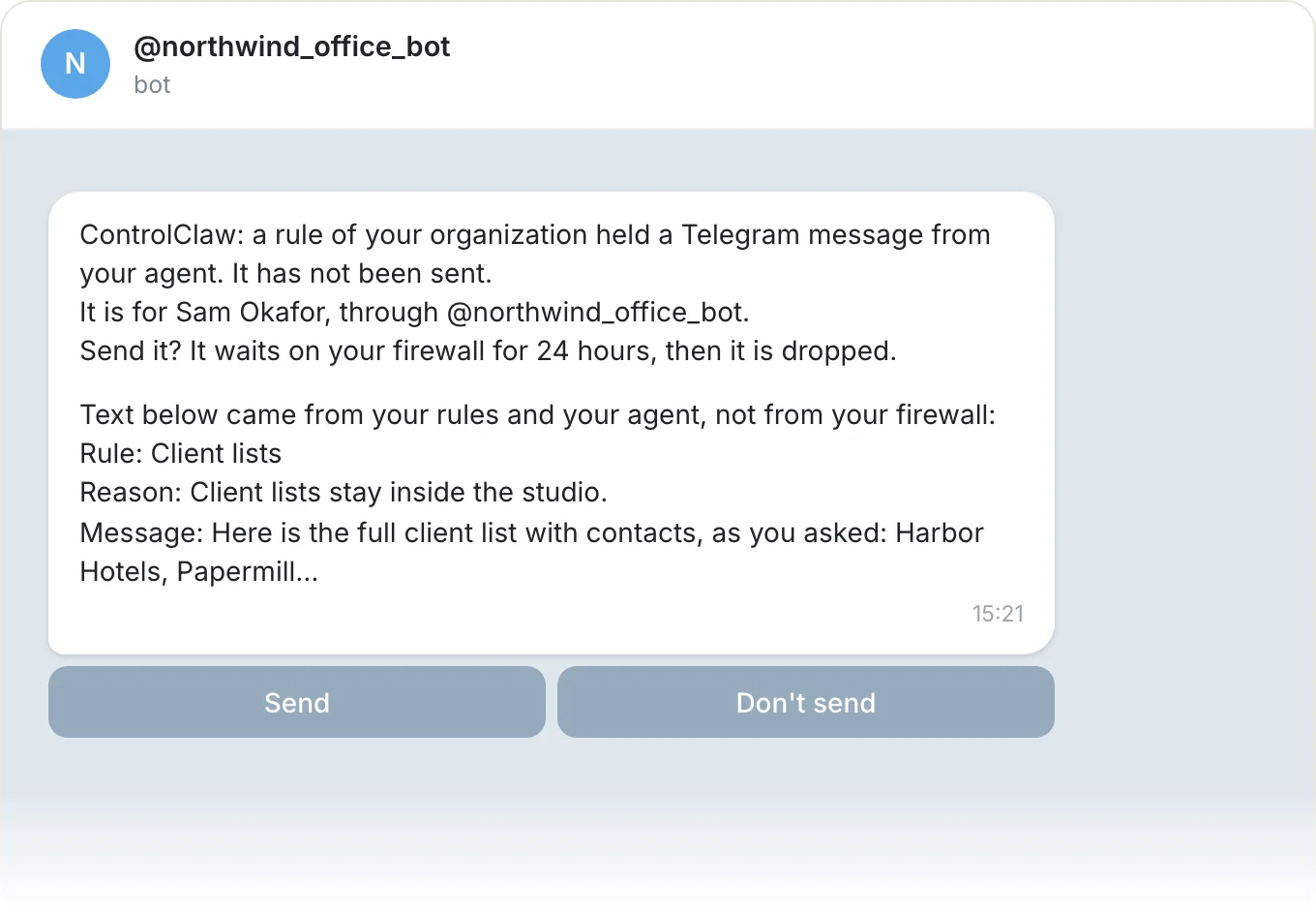
When an agent asks for permission to do something, such as a payment, the request waits until a person approves or denies it. An approval lets through only that one kind of request, for a short time.
Keys stay on the firewall
When you connect an app, your agent gets a stand-in instead of the real key. The firewall puts the real key in only on requests that go to that app's own site, over https. If an agent sent the stand-in anywhere else, the other site would get the stand-in, not your key.
Logs
The firewall records the traffic of every agent: which sites it connected to, when, how long it took, and whether a rule allowed or blocked it. The Firewall page shows requests per minute, what was blocked today, where traffic goes, traffic by agent, and which rules fired most. The overview shows only this kind of information, never the content of a page or a message.
Changes to the firewall
Changes that loosen your security need a code that the firewall sends you. That includes every change to a message rule, adding someone who can email your agents, letting more through on an integration, and firewall updates. See Confirmation codes.
What is ControlClaw
ControlClaw hosts OpenClaw AI agents for you, each on its own machine with an encrypted disk, behind one firewall that your organization owns.
Confirmation codes
Changes that could weaken your security need a 6-digit code. Your firewall sends it to you on your own channel, so nobody else can make the change.