Channels
How you talk to an agent on Telegram, Slack, WhatsApp, email or team chat, how to connect your first channel, and who is allowed to message it.
A new agent starts with web chat only. To talk to it from your phone or your team's tools, connect a channel.
The channels
- Telegram. You create a bot in Telegram and paste its token in the console.
- Slack. You create a Slack app from the manifest the console gives you, and paste its two tokens.
- WhatsApp. The agent links to a WhatsApp number as a linked device, by QR code. Use a second number so other people can message it, or your own number so only you can, from the chat with yourself.
- Email. Give an agent its own AgentMail inbox, or connect a Google account for Gmail. Your email rules decide who can write to it.
- Team chat. One chat room on your firewall where your agents and the people in your organization talk. When an owner or admin turns it on, every agent joins it by itself.
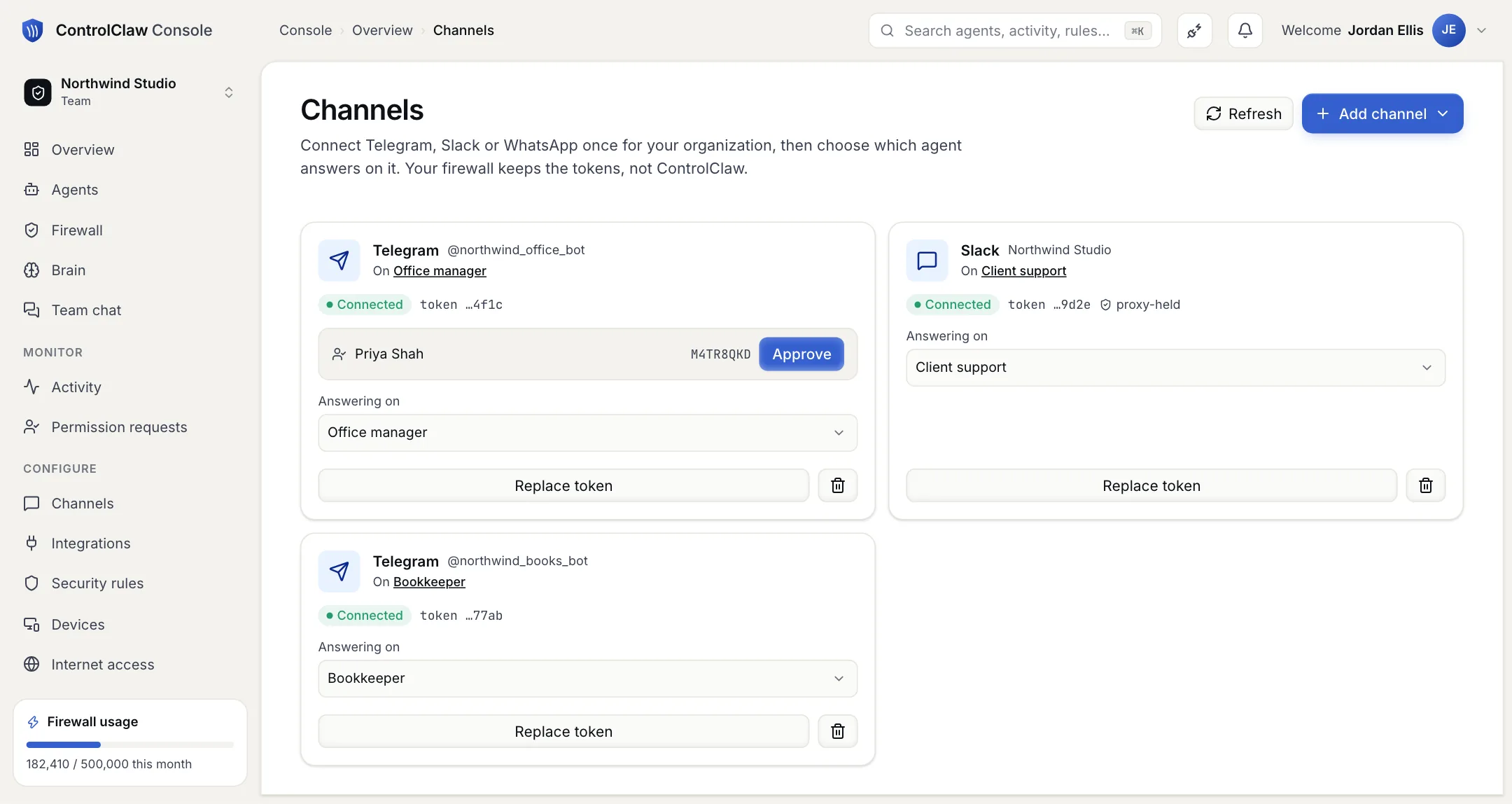
Channels are on the Channels page in the sidebar. A connection belongs to your organization and answers on one agent at a time. You can move it to another agent whenever you like. The people approved on it move with it. WhatsApp is the exception: moving it means scanning the QR code again.
Where the token goes
You type a bot token in the console once. It goes straight to your firewall, which keeps it in an encrypted file and sets up the channel on the agent. ControlClaw's database keeps only the last four characters, so you can tell which bot is connected.
A WhatsApp QR code is shown only on a page of the agent itself, never on ControlClaw, because whoever scans it gets your WhatsApp.
Who can talk to an agent
Every channel starts in pairing mode. The first time someone messages the bot, it answers with a pairing code and does nothing else. The person appears under Who can talk to it, and you press Approve. Nobody else gets through.
Connect your first channel
Telegram is the quickest. It is built into OpenClaw, while Slack and WhatsApp are downloaded by the agent the first time you connect one, which takes a few minutes.
Create a bot
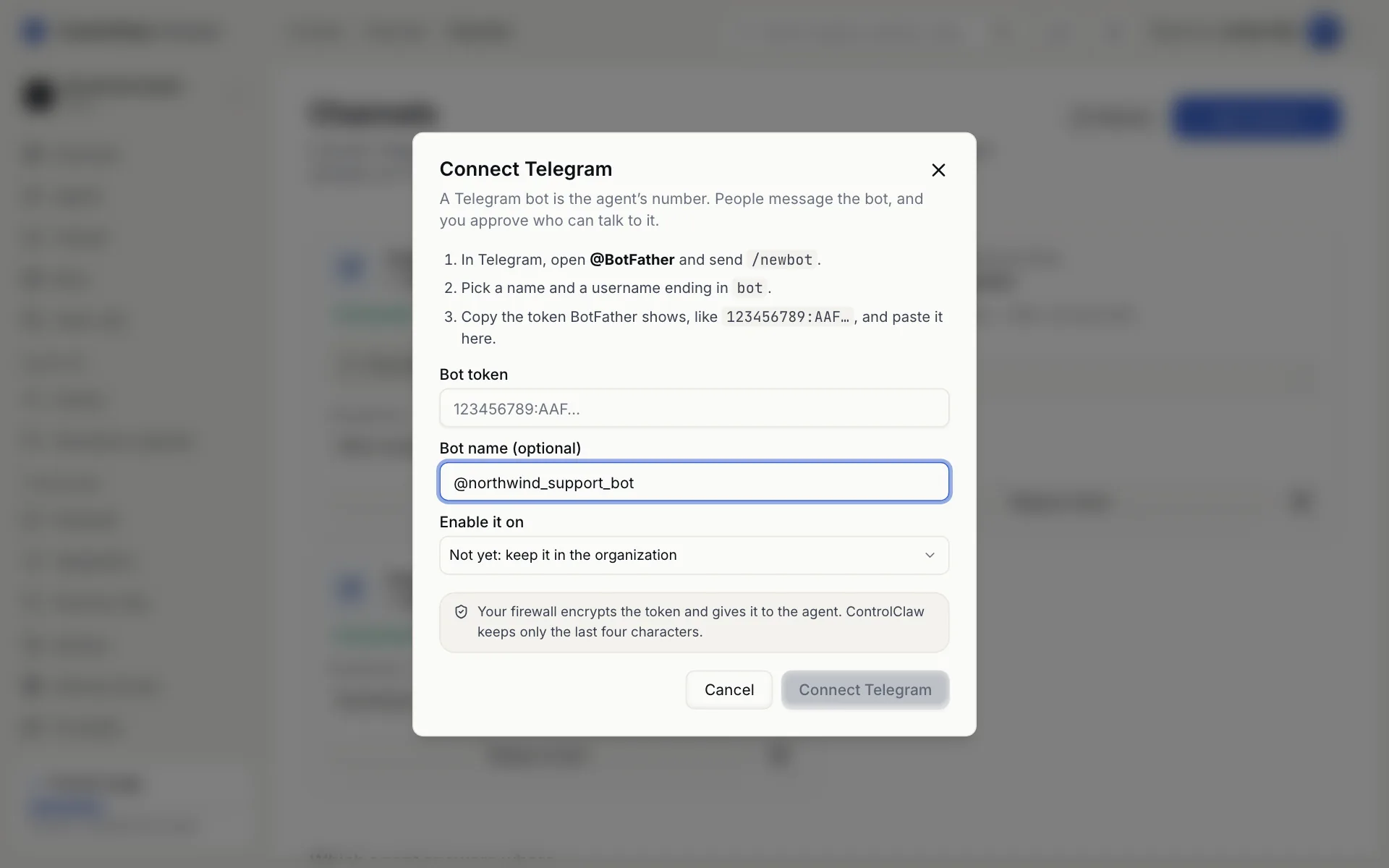
In Telegram, open @BotFather and send /newbot. Pick a name, and a username that ends in
bot. BotFather replies with a token.
Paste the token
On the Channels page, add Telegram and paste the token. Choose the agent that should answer on it.
Message your bot
Send your bot a message. It answers with a pairing code.
Approve yourself
In the console, find yourself under Who can talk to it and press Approve. The agent starts answering you.
The first person you approve becomes the one who gets confirmation codes. From then on, a change such as approving someone else or moving the bot needs a 6-digit code sent to you on this channel. See Confirmation codes.
Confirmation codes
Changes that could weaken your security need a 6-digit code. Your firewall sends it to you on your own channel, so nobody else can make the change.
Connect Claude and other MCP apps
Connect Claude, Claude Code or another MCP app to ControlClaw, so it can read your agents, rules and requests, and change them if you allow it.