Your agent in Google Meet
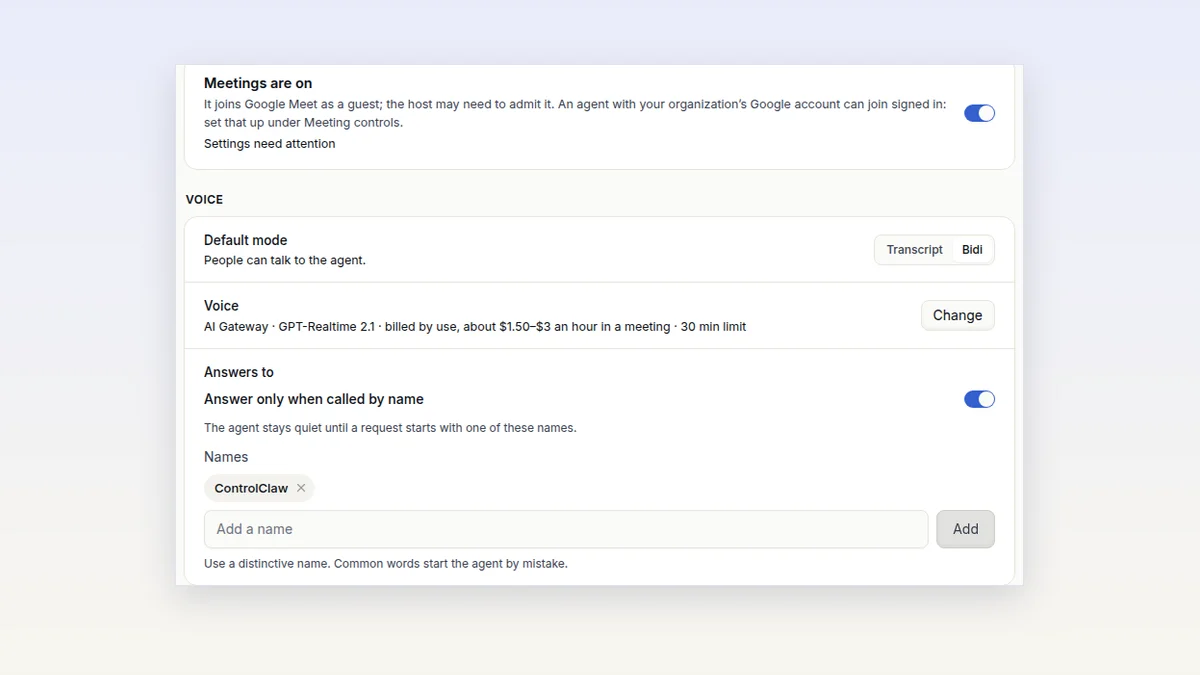
Your agent can join Google Meet, take notes, answer when you call it by name, and act on the meeting afterwards by instructions you write once.
Pick what an agent is for when you create it, and it is set up for you. Apply a template to a running agent, keep your own, or create several agents at once.
A new OpenClaw agent knows nothing about the job you have in mind. Someone has to write its instructions, install its tools, set its email rules and schedule its jobs. By hand, that is slow, and no two agents end up the same.
With templates you pick what the agent is for when you create it, and it is set up while it starts.
The New agent dialog offers five.
| Template | What it sets up |
|---|---|
| Personal assistant | Its instructions, and email that asks you before writing to anyone new |
| Software factory | Its instructions, email off, and the GitHub CLI, uv and ripgrep installed |
| Chief of staff | Its instructions, email that asks first, and a morning brief at 08:00 in your time zone |
| Support agent | Its instructions, a folder for knowledge files, and email only to listed people |
| Blank | Nothing |
Next to the template you can write a note of up to 200 characters, such as "for Anna, sales". The template uses it, for example in the agent's instructions.
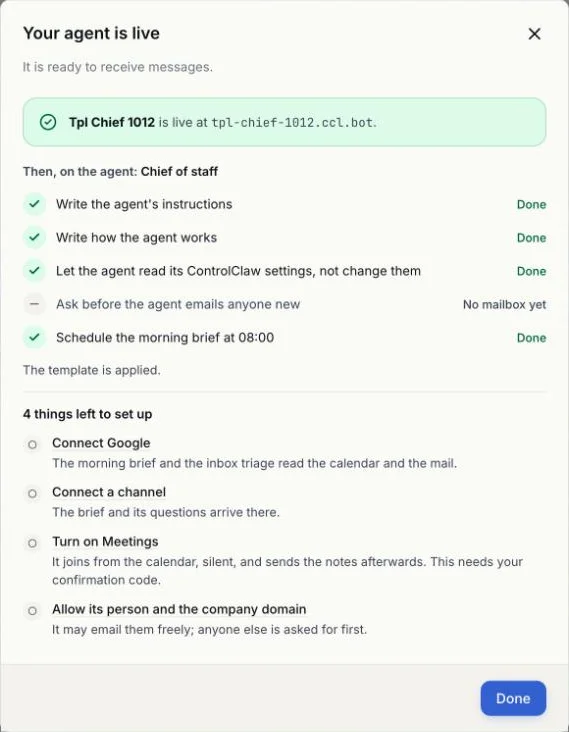
Some things a template can't do for you. Turning on meetings, or letting the agent email more people, needs your confirmation code, and a template never replaces a code. Other things depend on you, like which GitHub repositories to work on.
So each template comes with a short to-do list. When the agent is live, the dialog shows it, for example "4 things left to set up", and each item links to the page where you do it. The console ticks items off by itself where it can tell, such as when a channel is connected.
The agent's page keeps a Template card with every step and how it went. The agent checks the steps again after every update and every six hours, and the Doctor tab says how many still hold.
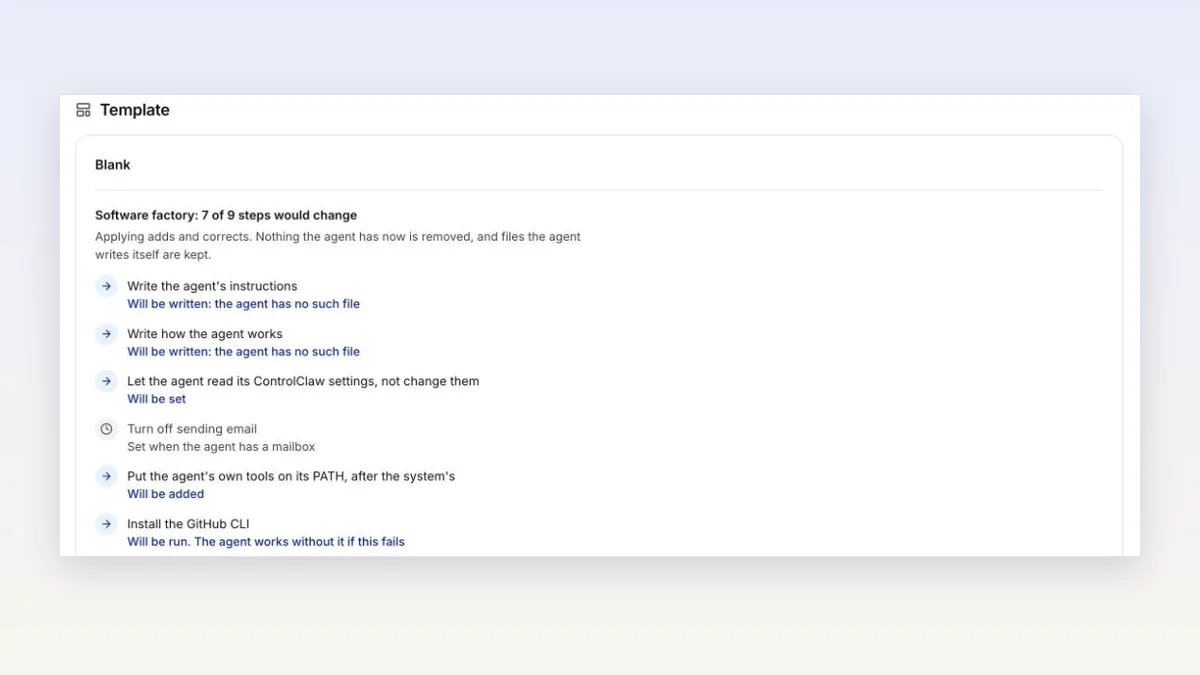
You can give a template to an agent you created earlier. On its Template card, press Apply a template, pick one, then See what would change. Nothing is changed yet. The agent answers in a few seconds with a preview, such as "7 of 9 steps would change", and what would happen to each step.
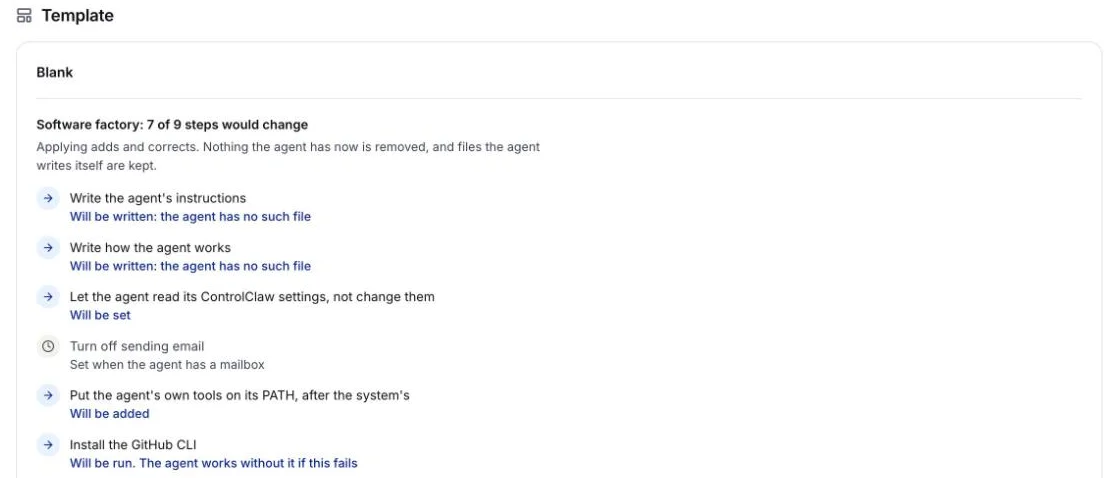
Applying adds and corrects. It removes nothing, and it never overwrites the instruction files the agent already wrote for itself. Because a template can run scripts on the agent, Apply this template needs a 6-digit code from your firewall, the same way an update does.
Owners and admins can write their own on the Templates page, or press Save as template on an agent that is already set up the way they like. A saved template never changes. To change one, you copy it to a new template.
Your templates are kept in ControlClaw's database, not on your firewall, so they can't hold secrets. Every line of every file is checked, and a file that looks like it holds a password or a key is refused. Before anyone uses one of your templates, the console lists every script it runs and every file it writes, so you read them first.
Bulk create, next to New agent, makes one agent for each person you tick, or for each row of a CSV list, all from one template. One press confirms them all. A batch takes up to 25 agents, and a page shows how far each one has got.
A failed step does not stop the agent. The card says which step failed and offers Try again, or Let Doctor fix this step, where a coding agent finds out why it fails and fixes the step's script. That needs a confirmation code too.
Your agent can join Google Meet, take notes, answer when you call it by name, and act on the meeting afterwards by instructions you write once.
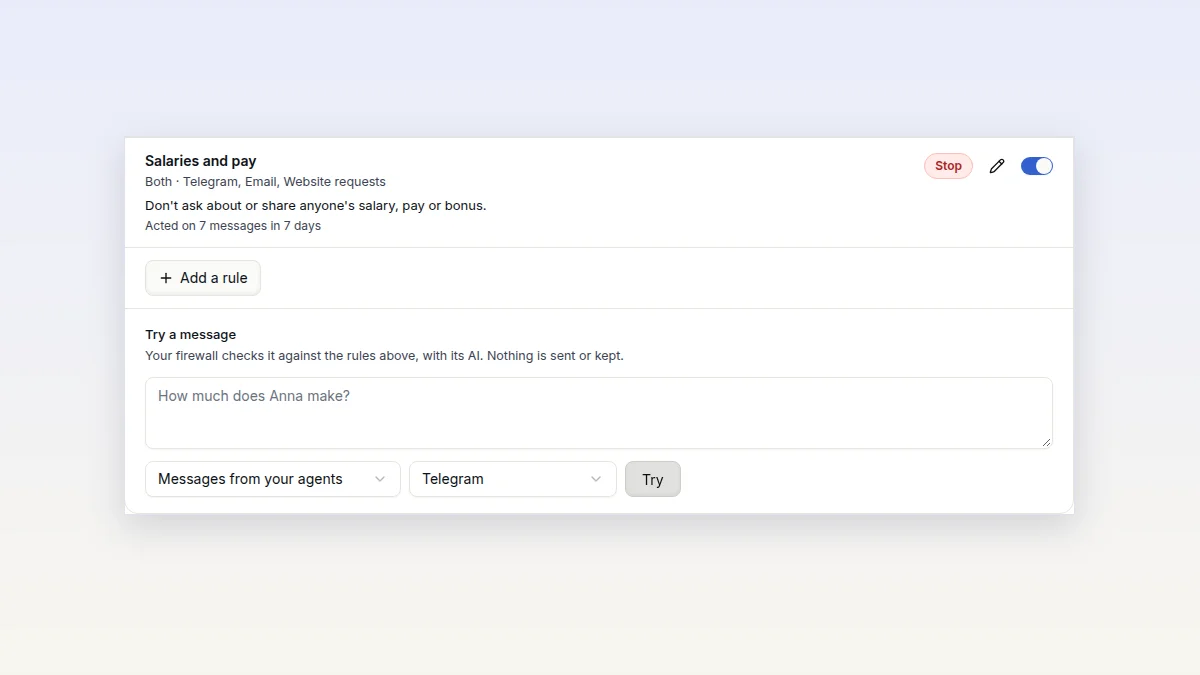
Tell your firewall what your agents may not send or receive, in a plain sentence. Its AI checks every message against it, so reworded messages are caught too.